> For the complete documentation index, see [llms.txt](https://gspro.gitbook.io/gspro-knowledge-base/llms.txt). Markdown versions of documentation pages are available by appending `.md` to page URLs; this page is available as [Markdown](https://gspro.gitbook.io/gspro-knowledge-base/troubleshooting-and-support/windows-smart-app-control.md).
# Windows Smart App Control
## Windows Smart App Control
Included with Windows 11 is a security feature called Smart App Control. This application monitors applications installed and updated on your system. Although this system is great at catching most applications or downloads that might be harmful, it can however produce false positives or act over protective and block certain applications that are safe.
In rare cases, the application GSPro can be marked as one of these false positives. (Resulting in the Launcher or Connect application losing critical files necessary to run) With the below steps, the Windows 11 Smart App Control can be disabled and prevent necessary files from GSPro being blocked.
{% hint style="danger" %}
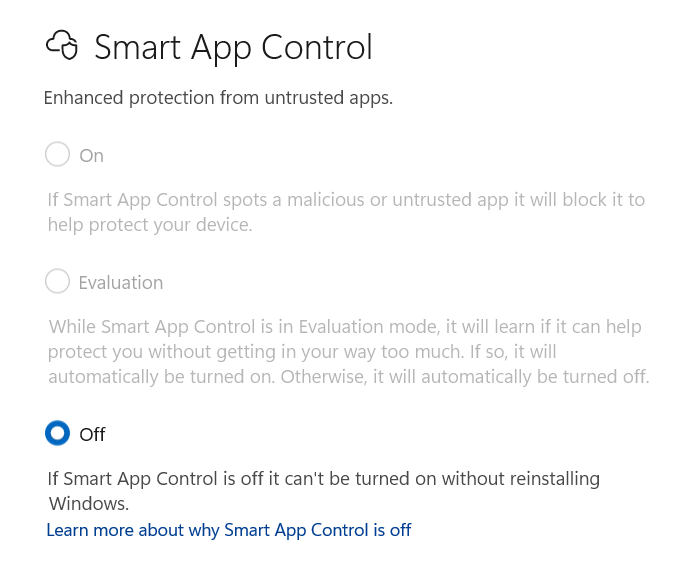
**Before proceeding, we do advise that Windows 11 currently does not allow this function to be reenabled once disabled. They have discussed adding the ability to reenable this function in the future however.**
{% endhint %}
### Disabling Smart App Control
To disable the Smart App Control, please follow the shown steps below:
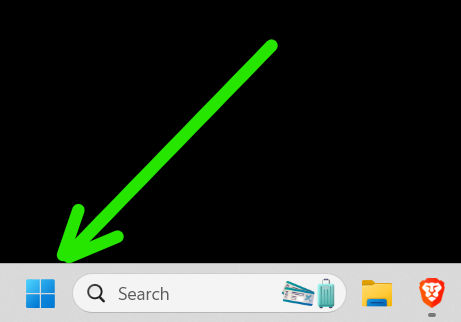
1. Select the Windows key or navigate to your Windows search bar found in the bottom left corner of the desktop.
2. Type "Settings" into the search bar and launch the application/settings menu.\
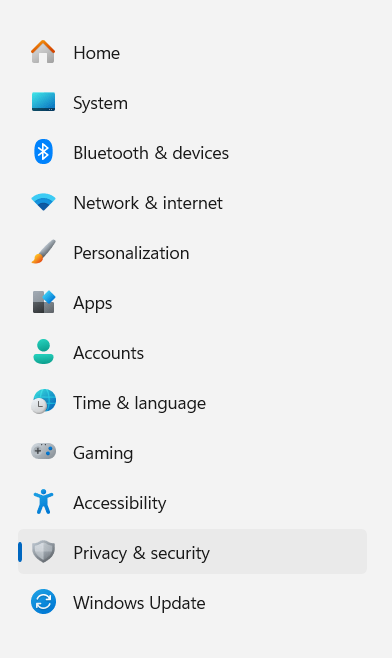
3. Select the "Privacy & Security" tab from the left side panel.
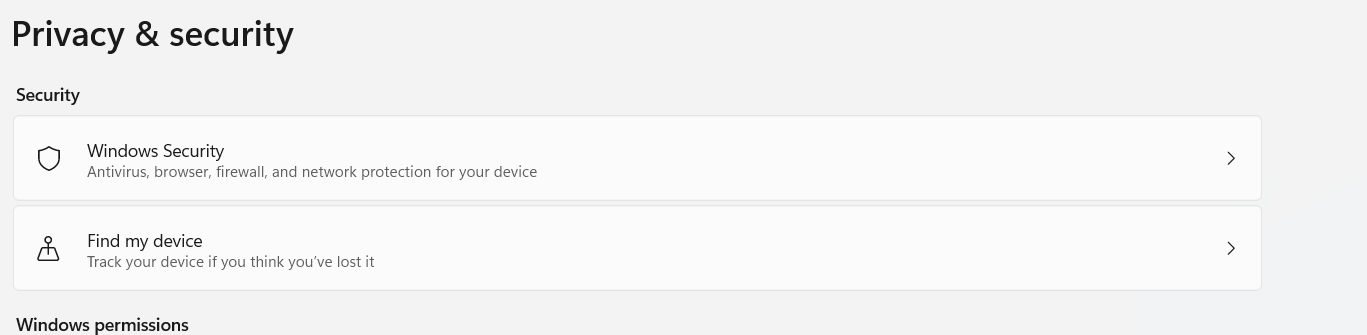
4. From this page, select Windows Security.
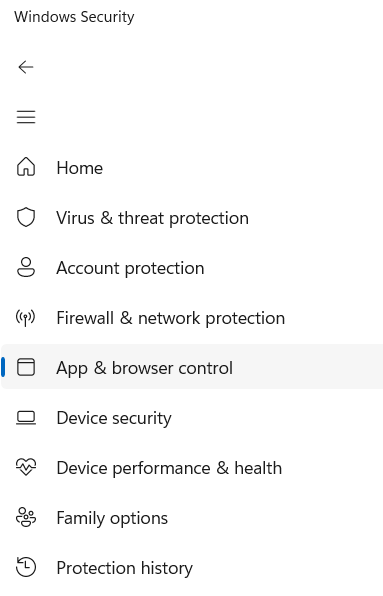
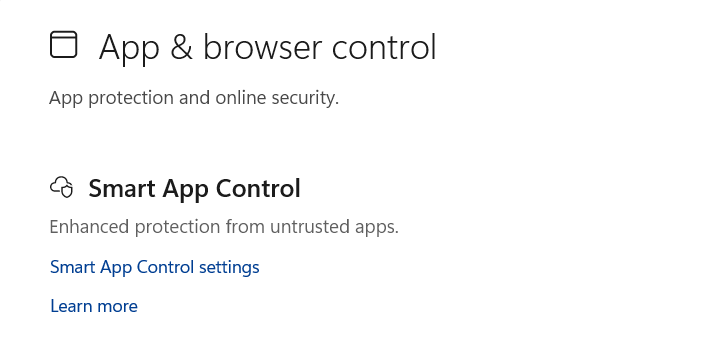
5. From within the new Windows Security Window, select the "App & Browser Control" from the side panel tabs shown.
6. Select "Smart App Control Settings".
7. Lastly, select "Off" for your Smart App Control.
### Action After Disabling Smart App Control
Once the Smart App Control is disabled, further action may still be required to bring missing files back into GSPro that have been blocked or quarantined.
If the application in question is the Connect Manager, selecting the "Restore Files" should refresh any missing files and resolve the issue.
If the Launcher itself or another aspect of GSPro is failing to restore correctly, you can refresh all files within the GSProV1 folder with the steps found here: