> For the complete documentation index, see [llms.txt](https://gspro.gitbook.io/gspro-knowledge-base/llms.txt). Markdown versions of documentation pages are available by appending `.md` to page URLs; this page is available as [Markdown](https://gspro.gitbook.io/gspro-knowledge-base/troubleshooting-and-support/occt-benchmark.md).
# OCCT Benchmark
## Benching Your PC With OCCT:
Below is a guide on how to download and run the OCCT benchmark test. Using this test, a longer and more thorough assessment can be made on if the PC has any hardware related issues.
## Locating/downloading the test:
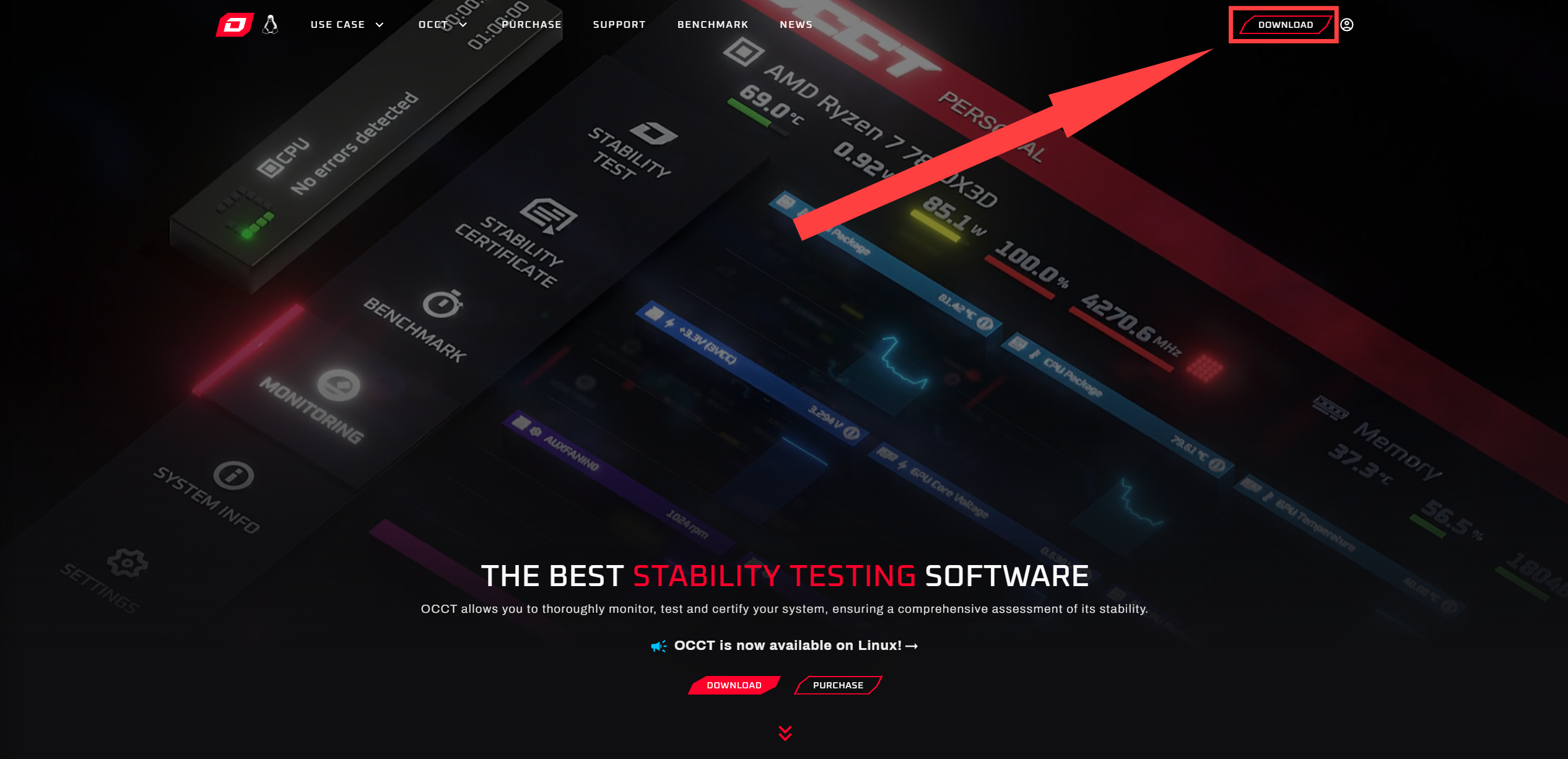
To start, please head to the following link: [https://www.ocbase.com](https://www.ocbase.com/) From the website, click “Download” found in the top right corner of the screen:
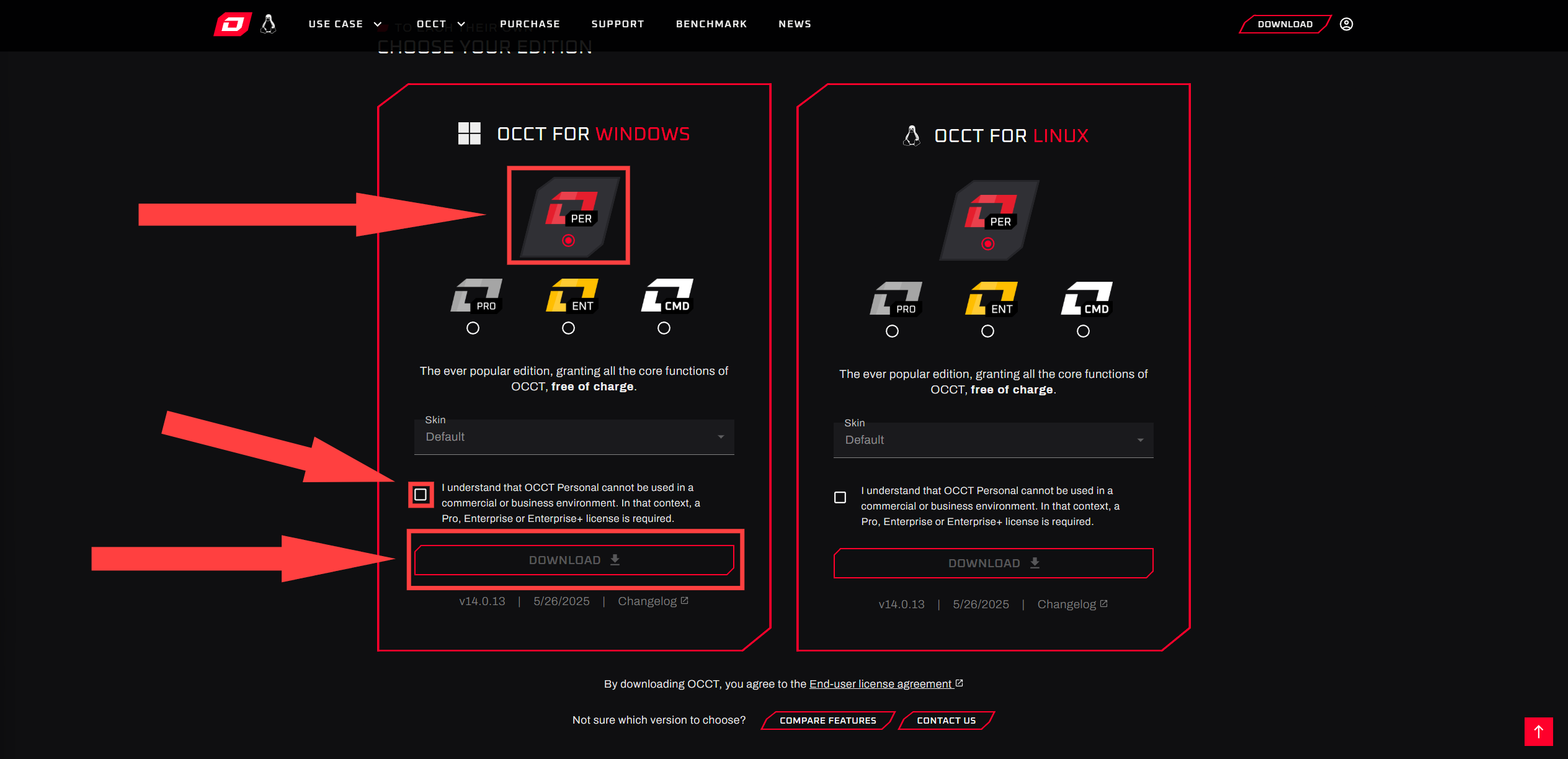
 Once done, you’ll be redirected to the download page. Ensure the “PER” option is selected in the “Windows” box on the left. Accept the terms below, and select “Download”:
 With OCCT downloaded, launch the program. (If asked, allow the program to make changes to your PC) Upon launch, read/accept the End-User License Agreement.
### Configuration:
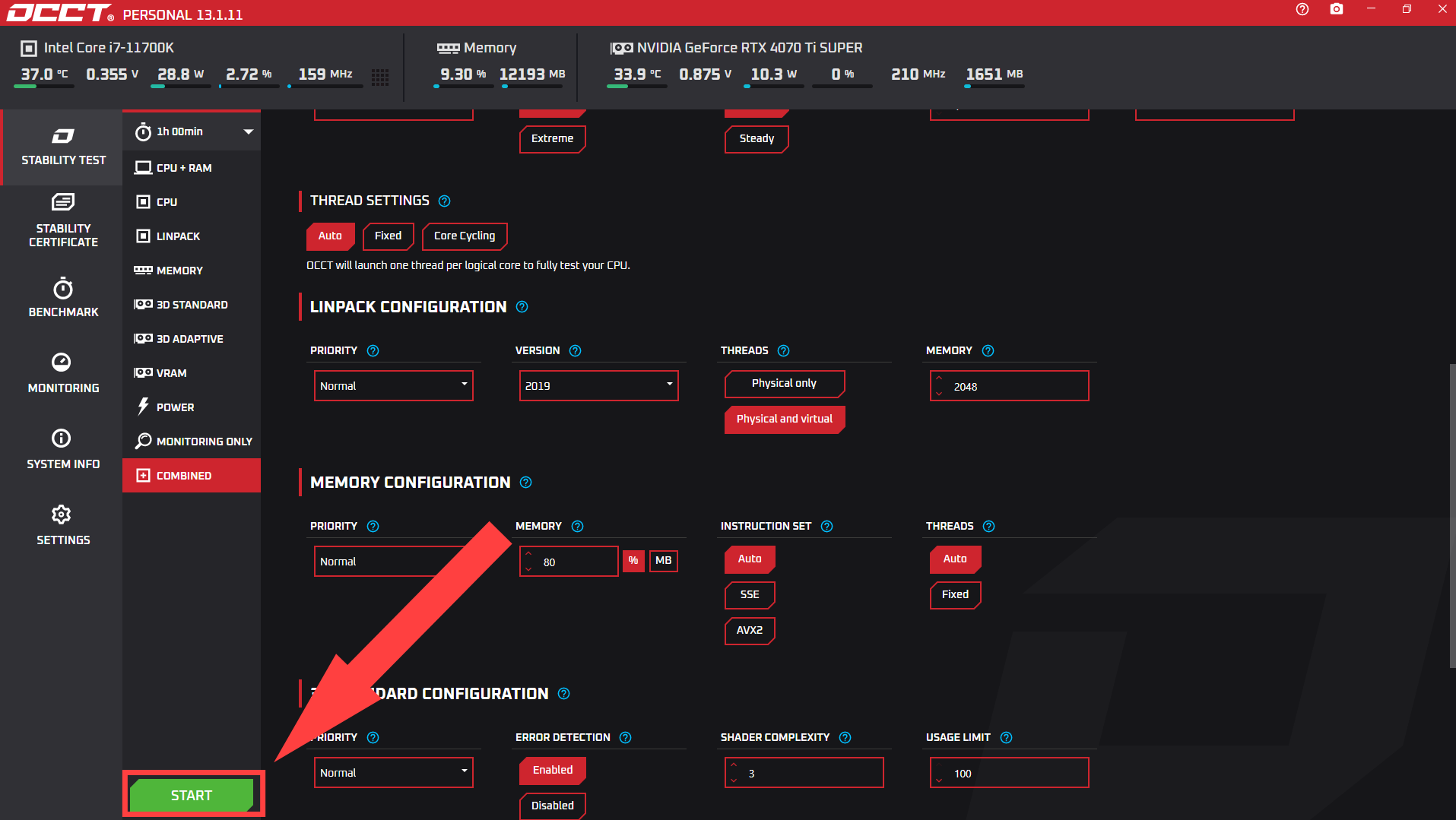
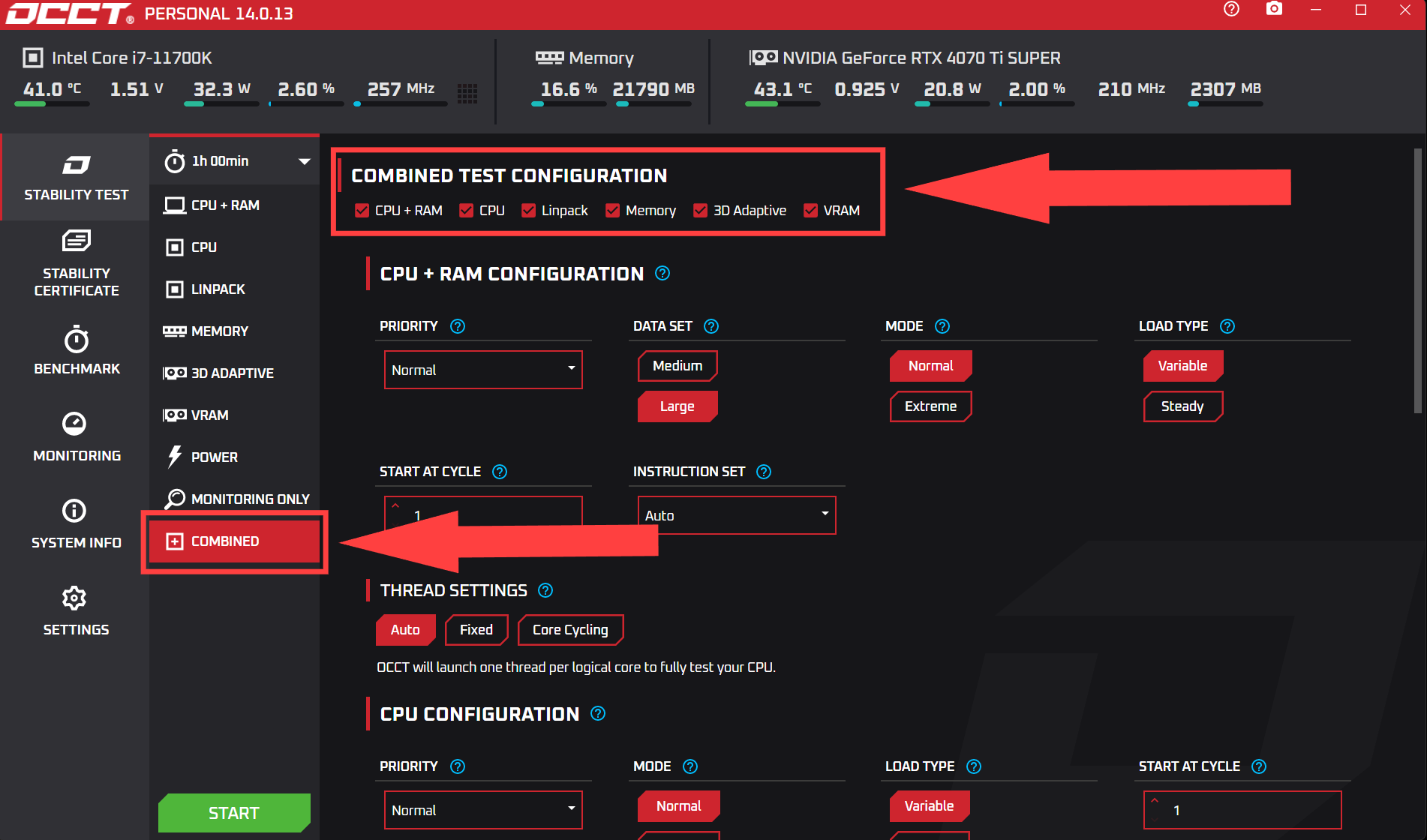
For the most effective test, all options should be scanned in a “Combined” test. OCCT is pretty good about choosing the best settings automatically based on what hardware you have. Locate and click Combined under “Monitoring Only”. You’ll be represented with the full array of tests you’ll want to select. (CPU + RAM, CPU, Linpack, Memory, 3D adaptive, and VRAM):
With OCCT downloaded, launch the program. (If asked, allow the program to make changes to your PC) Upon launch, read/accept the End-User License Agreement.
### Configuration:
For the most effective test, all options should be scanned in a “Combined” test. OCCT is pretty good about choosing the best settings automatically based on what hardware you have. Locate and click Combined under “Monitoring Only”. You’ll be represented with the full array of tests you’ll want to select. (CPU + RAM, CPU, Linpack, Memory, 3D adaptive, and VRAM):
 ### Starting the test:
With all of the steps taken above, you’ll be ready to start the test. Be sure to run it for the entire 1 hour period unless the software stops itself, or a serious issue arises. Some tests like Linpack are periodic and won’t give an accurate error report unless the whole test has been run.
{% hint style="warning" %}
**Note: Please make sure no other applications are running in the background for an accurate and safe test. Run the test at your own risk as the software will create a heavy load for your PC components.**
{% endhint %}
To start, click on the green “Start” found in the bottom left of the program. A popup may appear asking if you’d like to support OCCT via Patron. You can ignore this after 10 seconds, and click “Start” again:
### Results:
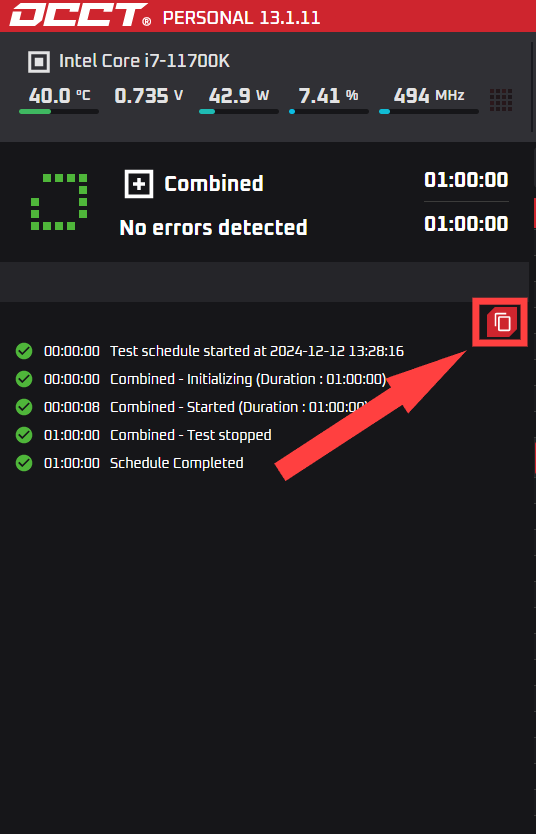
After the full hour is complete, (Or if the test ended itself) the results will be fully populated on the left side of the screen. Select the “Copy” icon to send via email to our team.
### Starting the test:
With all of the steps taken above, you’ll be ready to start the test. Be sure to run it for the entire 1 hour period unless the software stops itself, or a serious issue arises. Some tests like Linpack are periodic and won’t give an accurate error report unless the whole test has been run.
{% hint style="warning" %}
**Note: Please make sure no other applications are running in the background for an accurate and safe test. Run the test at your own risk as the software will create a heavy load for your PC components.**
{% endhint %}
To start, click on the green “Start” found in the bottom left of the program. A popup may appear asking if you’d like to support OCCT via Patron. You can ignore this after 10 seconds, and click “Start” again:
### Results:
After the full hour is complete, (Or if the test ended itself) the results will be fully populated on the left side of the screen. Select the “Copy” icon to send via email to our team.