> For the complete documentation index, see [llms.txt](https://gspro.gitbook.io/gspro-knowledge-base/llms.txt). Markdown versions of documentation pages are available by appending `.md` to page URLs; this page is available as [Markdown](https://gspro.gitbook.io/gspro-knowledge-base/troubleshooting-and-support/malwarebytes-exceptions.md).
# Malwarebytes Exceptions
## Creating An Exception In Malwarebytes:
If you’re reading this guide, it means that an Antivirus software called “MalwareBytes” is blocking a function within GSPro from working as intended.
### Why Is MalwareBytes Just Now Flagging A File From GSPro:
MalwareBytes can be pretty aggressive on blocking applications. Even though GSPro may not have been flagged before, new traffic sent to/from GSPro could trigger MalwareBytes to flag the application.
### How Do You Fix A Flagged File For GSPro:
Before going into fixing a potentially flagged file for GSPro, the easiest/best method to prevent this is to delete MalwareBytes as a service from your PC. If the service is no longer needed or active, I’d recommend deleting MalwareBytes from your PC. If you’d wish to keep MalwareBytes on your PC, please continue below.
### Locating/Launching MalwareBytes:
From your desktop, head to the taskbar and “Hidden Icon” arrow as seen below:
From here, right click on the blue “M” shaped icon. From the new dropdown, click “Open MalwareBytes”:
### Allow List:
From here, it’s pretty easy to create an exception for GSPro. Locate and click the “Detection History”, and the “Allow List” tab after:
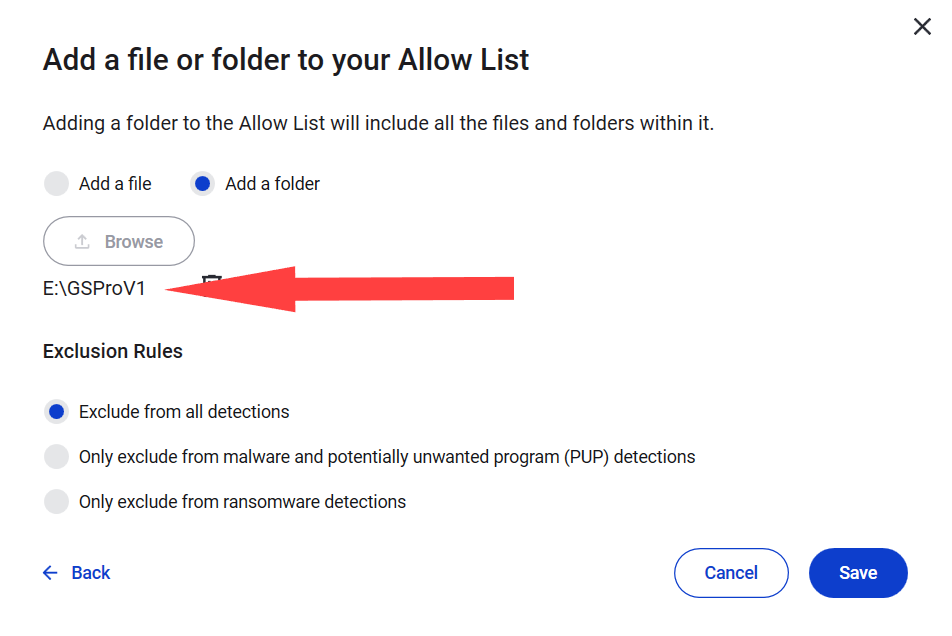
From the Allow List, click “Add Item”. Select the File/Folder option for the most effective exception for GSPro. Select “Add a Folder”, and ensure “Exclude from all detections” is enabled. Once done, click “Browse”:
Once Browse is selected, you’ll be represented with a “File Explorer” tab. Follow the following path to locate the desired GSProV1 File/folder. (If you’ve downloaded GSPro to a separate drive, proceed to that drive instead. (C:\GSProV1):
After selecting the GSProV1 Folder, you should see the folder updated as seen below. If everything looks correct, all that’s left is to click “Save”:
.png)
.png)
.png)
.png)
.png)
.png)