> For the complete documentation index, see [llms.txt](https://gspro.gitbook.io/gspro-knowledge-base/llms.txt). Markdown versions of documentation pages are available by appending `.md` to page URLs; this page is available as [Markdown](https://gspro.gitbook.io/gspro-knowledge-base/troubleshooting-and-support/downloading-latest-stable-file-explorer.md).
# Downloading Latest Stable (File Explorer)
## Downloading The Latest Stable (File Explorer):
There may be a time where you’ll need to force GSPro to redownload the proper version outside of GSPro itself. We can accomplish this outside of GSPro through the “GSProV1” files. Below, I’ll go over the exact steps and process to do this.
### File Explorer:
To start, we need to locate File Explorer on the PC. If it’s not in your bottom taskbar, you can click on the Windows search bar, and type in File Explorer. Open the application once found.
.png) ### Navigation:
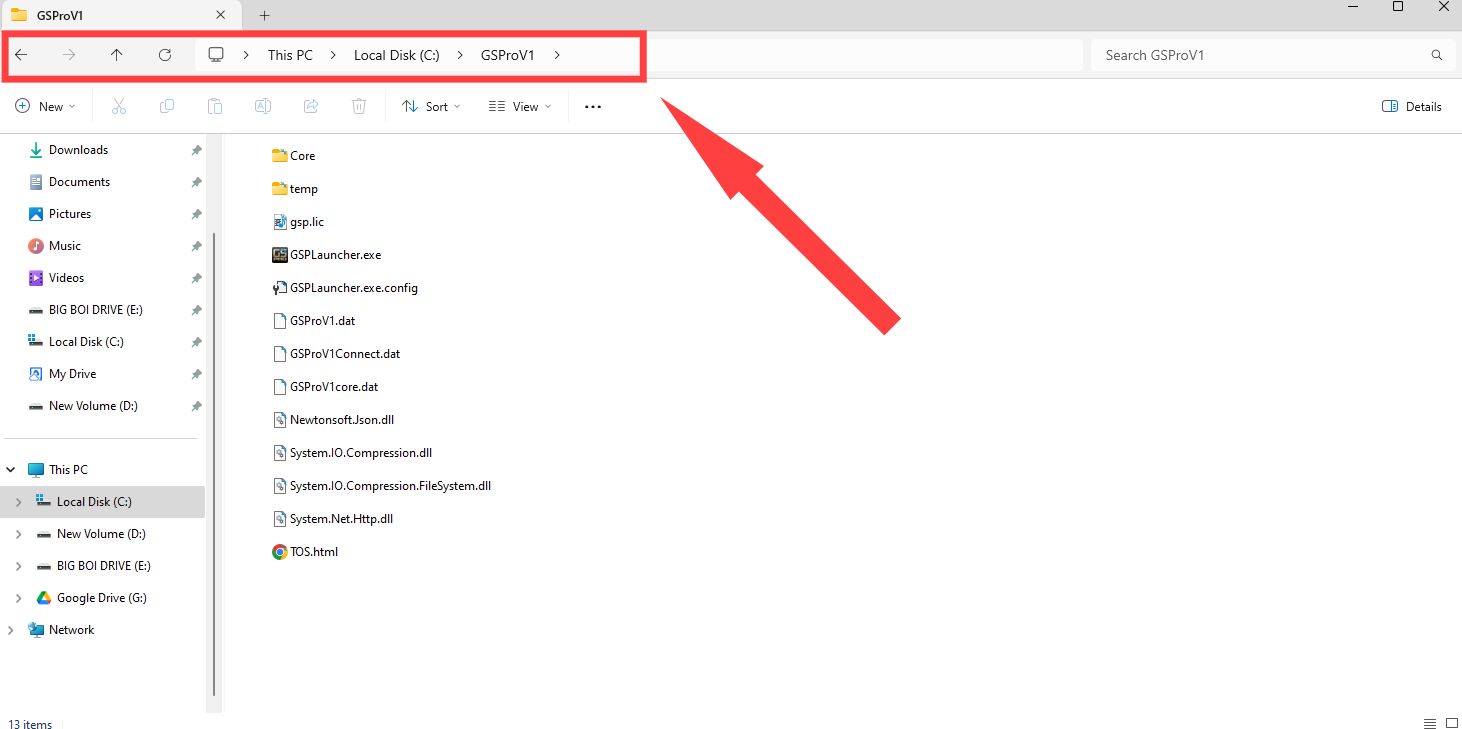
Once File Explorer is opened, we will need to locate the file for GSPro (GSProV1). This file by default will be located under the Local Disk (C:) drive. If you manually downloaded GSPro to another drive, locate the file GSProV1 under that drive instead. Once you’ve found the GSProV1 File, go ahead and left click it twice to open the file. This is what my path looks like so far:
### Navigation:
Once File Explorer is opened, we will need to locate the file for GSPro (GSProV1). This file by default will be located under the Local Disk (C:) drive. If you manually downloaded GSPro to another drive, locate the file GSProV1 under that drive instead. Once you’ve found the GSProV1 File, go ahead and left click it twice to open the file. This is what my path looks like so far:
 ### Deleting files:
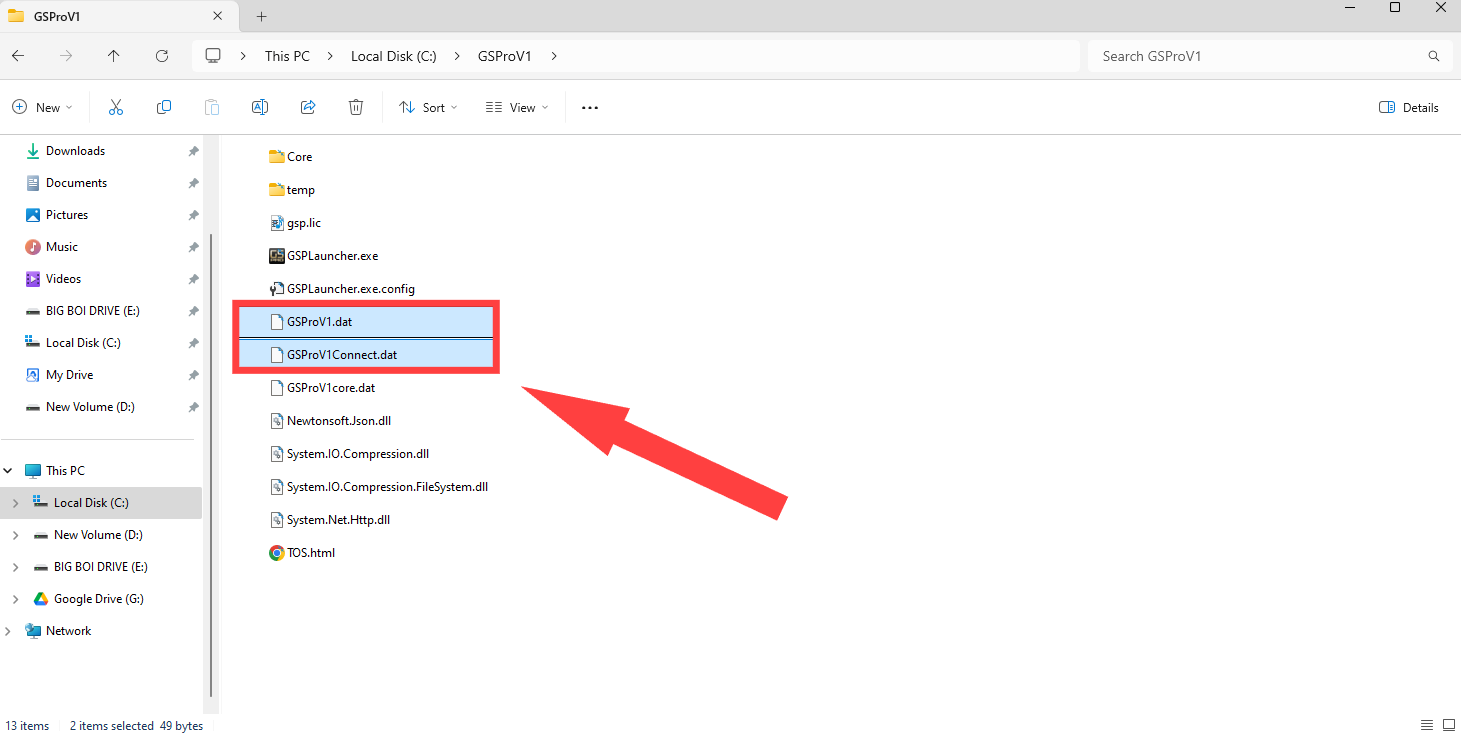
At this point, we will need to delete two files. It’s very important that you make sure to delete only these two specific files. “GSProV1.dat”, and “GSProV1Connect.dat”. Select these two files, and delete them.
### Deleting files:
At this point, we will need to delete two files. It’s very important that you make sure to delete only these two specific files. “GSProV1.dat”, and “GSProV1Connect.dat”. Select these two files, and delete them.
 ### Launching GSPro:
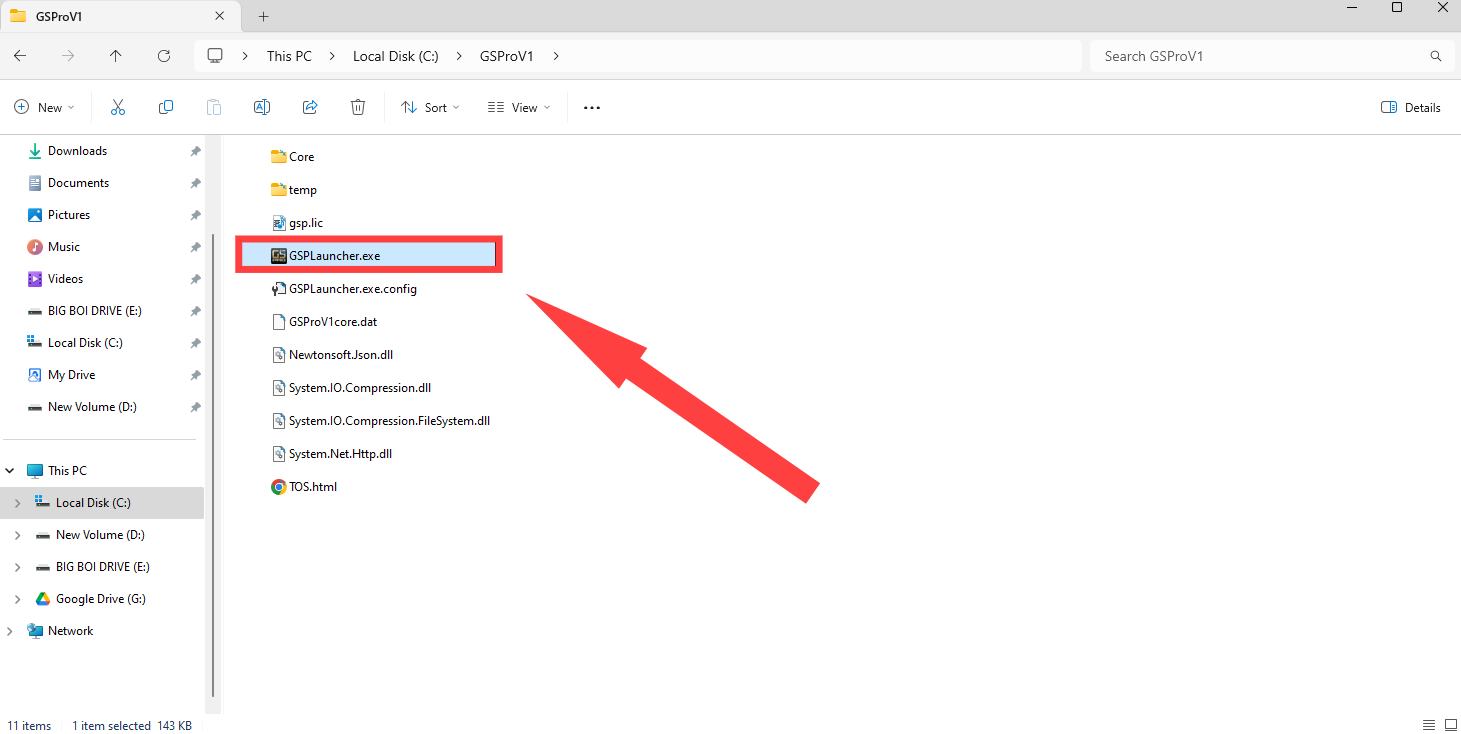
Now that the selected files are deleted, GSPro will essentially run a fresh download. (All saved course and player data won’t be affected from this) To start up GSPro, left click on “GSPLauncher.exe” from the same file list.
{% hint style="danger" %}
**PLEASE NOTE: Do not attempt to launch GSPro from anywhere outside of the folder shown below until all of the steps in this guide are complete, or you may experience unexpected issues.**
{% endhint %}
### Launching GSPro:
Now that the selected files are deleted, GSPro will essentially run a fresh download. (All saved course and player data won’t be affected from this) To start up GSPro, left click on “GSPLauncher.exe” from the same file list.
{% hint style="danger" %}
**PLEASE NOTE: Do not attempt to launch GSPro from anywhere outside of the folder shown below until all of the steps in this guide are complete, or you may experience unexpected issues.**
{% endhint %}
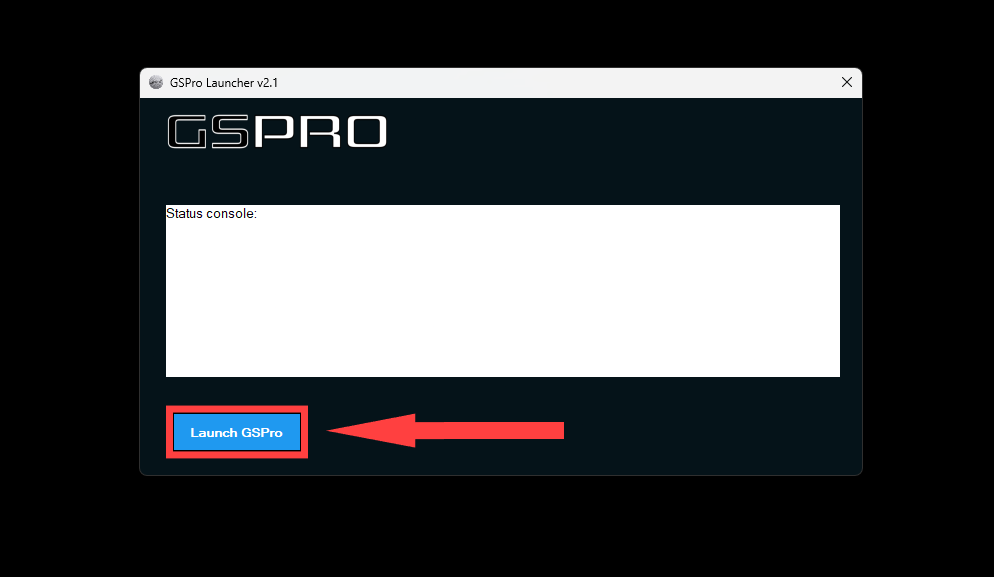
 The GSPro launcher will pop up. Click on “Launch GSPro”, and GSpro will update to the latest stable version.